> For the complete documentation index, see [llms.txt](https://docs.tabiya.org/llms.txt). Markdown versions of documentation pages are available by appending `.md` to page URLs; this page is available as [Markdown](https://docs.tabiya.org/our-tech-stack/compass/compass-customization-guide.md).
# Compass Customization Guide
Compass supports **white-label customization**, allowing partners to adapt branding, features, language, and data collection so the application looks and feels like their own product.
This guide explains what you can customize and how those changes affect the application.
### Branding
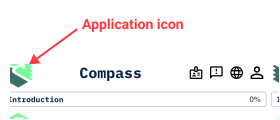
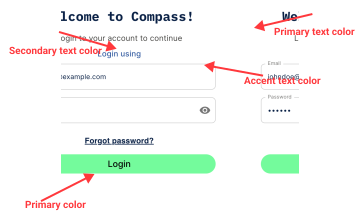
Update the application name, logos, icons, and colors to match your organization’s identity. You can also set search engine details to control how your site appears online.
**Identity**
Application identity
**Assets**
Logo and icon assets
**Colors**
Branding colors
### Authentication
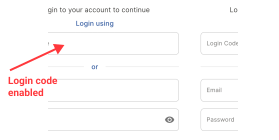
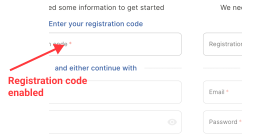
Decide how users log in. You can configure the authentication process by enabling or disabling login or registration codes.
Login and registration with code enabled
### CV Features
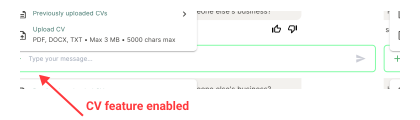
Turn the CV functionality on or off. If disabled, all CV‑related options disappear from the application.
CV feature enabled
### Skills Report
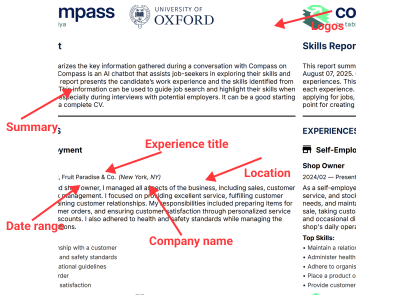
Add your logo(s) to the report, choose the available download formats (PDF or DOCX), and decide which sections are included in the report, including the summary and experience details.
Skills report customization
### Languages
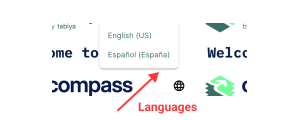
Select the default language for the application and choose which additional languages users can switch to.
Language switcher interface
### Sensitive Data
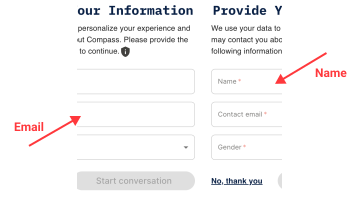
Define which personal information Compass collects from users. Available fields include:
* Name
* Contact Email
* Gender
* Age
* Education Status
* Main Activity
Each field can be customized to match your organization’s requirements and translated into supported languages.
Sensitive data fields
### How It Works
Customization is controlled through settings provided during deployment. These settings are passed into Compass automatically and applied across the application once the deployment is complete.
### Important Notes
* Only the options listed above can be customized. Core workflows and layouts stay the same.
* If a customization setting is missing or entered incorrectly, Compass will ignore it and use the default settings instead.
* Colors must meet accessibility standards so all content remains readable.
---
# Agent Instructions
This documentation is published with GitBook. GitBook is the documentation platform designed so that both humans and AI agents can read, navigate, and reason over technical content effectively. Learn more at gitbook.com.
## Querying This Documentation
If you need additional information that is not directly available in this page, you can query the documentation by asking a question.
Perform an HTTP GET request on the following URL with the `ask` and `goal` query parameters:
```
GET https://docs.tabiya.org/our-tech-stack/compass/compass-customization-guide.md?ask=&goal=
```
`ask` is the immediate question: it should be specific, self-contained, and written in natural language.
`goal` is what the user is ultimately trying to achieve, the reason they need the answer. Sharing it helps GitBook give you a better, more relevant answer. A goal is most helpful when it describes the outcome the user wants rather than restating the question. For example, with `ask=how do I create an API token`, a goal like `automate deployments from our CI pipeline` lets GitBook tailor the answer to that use case.
The response will contain a direct answer to the question and relevant excerpts and sources from the documentation.
Use this mechanism when the answer is not explicitly present in the current page, you need clarification or additional context, or you want to retrieve related documentation sections.